Configuration
Navigation: Diagnostics > Audit > Configuration
The Configuration tab of the Audit page displays a chronological record of all configuration changes made to the main configuration database. Every setting modified through the web interface or the API is logged here, allowing administrators to trace which parameters were changed, when the change occurred, and which user account performed the modification. Passwords are masked and displayed as XXX in the log entries.
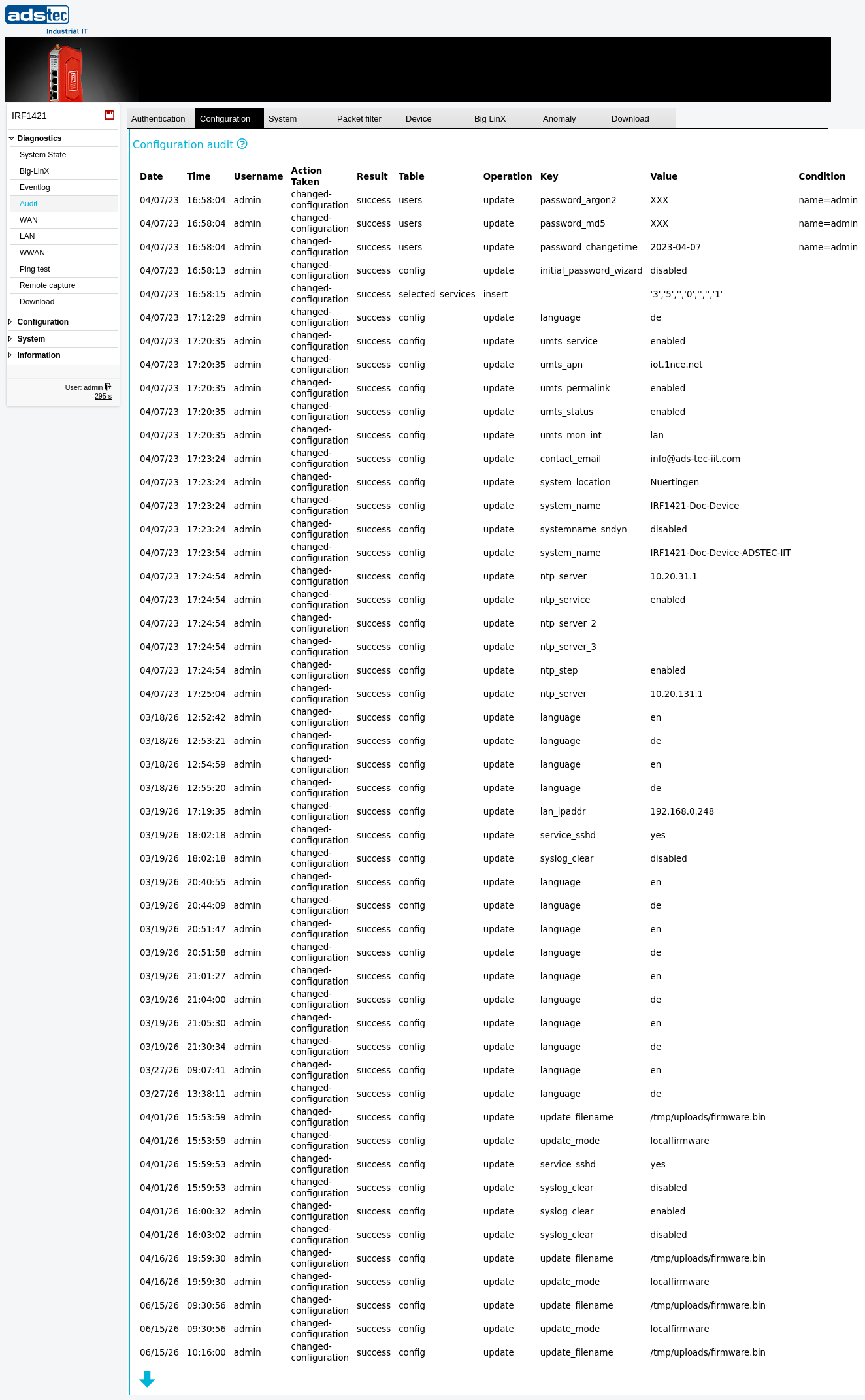
Configuration audit columns
The Configuration tab contains the following columns:
- Date
- The date on which the configuration change occurred.
- Time
- The time at which the configuration change occurred.
- Username
- The user account name of the person who made the configuration change.
- Action
- The type of audit event. For configuration changes, this is typically settings changed.
- Result
- The outcome of the configuration operation — success or failed.
- Role
- The access role under which the change was performed, such as config for configuration operations.
- Operation
- The type of modification applied to the configuration parameter, such as update for changed values.
- Key
- The internal configuration parameter name that was modified (e.g.,
language,units_apn,ip_server). This identifies the specific setting that was changed. - Value
- The new value assigned to the configuration parameter. Passwords and other sensitive values are displayed as XXX.
- Condition
- Additional context for the configuration change, if applicable. This field may be empty for most entries.
Security
Regularly review the Configuration audit tab to detect unauthorized or unexpected configuration changes. Correlate entries with the User accounts page to verify that only authorized personnel have modified device settings. For a complete audit trail, also review the System and Authentication tabs on the Audit page.
Note
The audit log is a shared 40 MB ring buffer. When the buffer is full, the oldest entries across all tabs are overwritten. For long-term retention, regularly download the audit log using the Download tab and archive it on an external system. Date and time entries may appear inconsistent due to NTP synchronization updates or manual time changes.