State
Navigation: Configuration > General settings > SCEP > State
The State tab displays the current status of the SCEP enrollment process. It shows a progress indicator with numbered stages that reflect how far the device has progressed in obtaining a certificate from the configured SCEP server. Use this tab to verify whether the SCEP client is active and to monitor or troubleshoot the certificate enrollment workflow. The SCEP client is configured on the SCEP configuration tab.
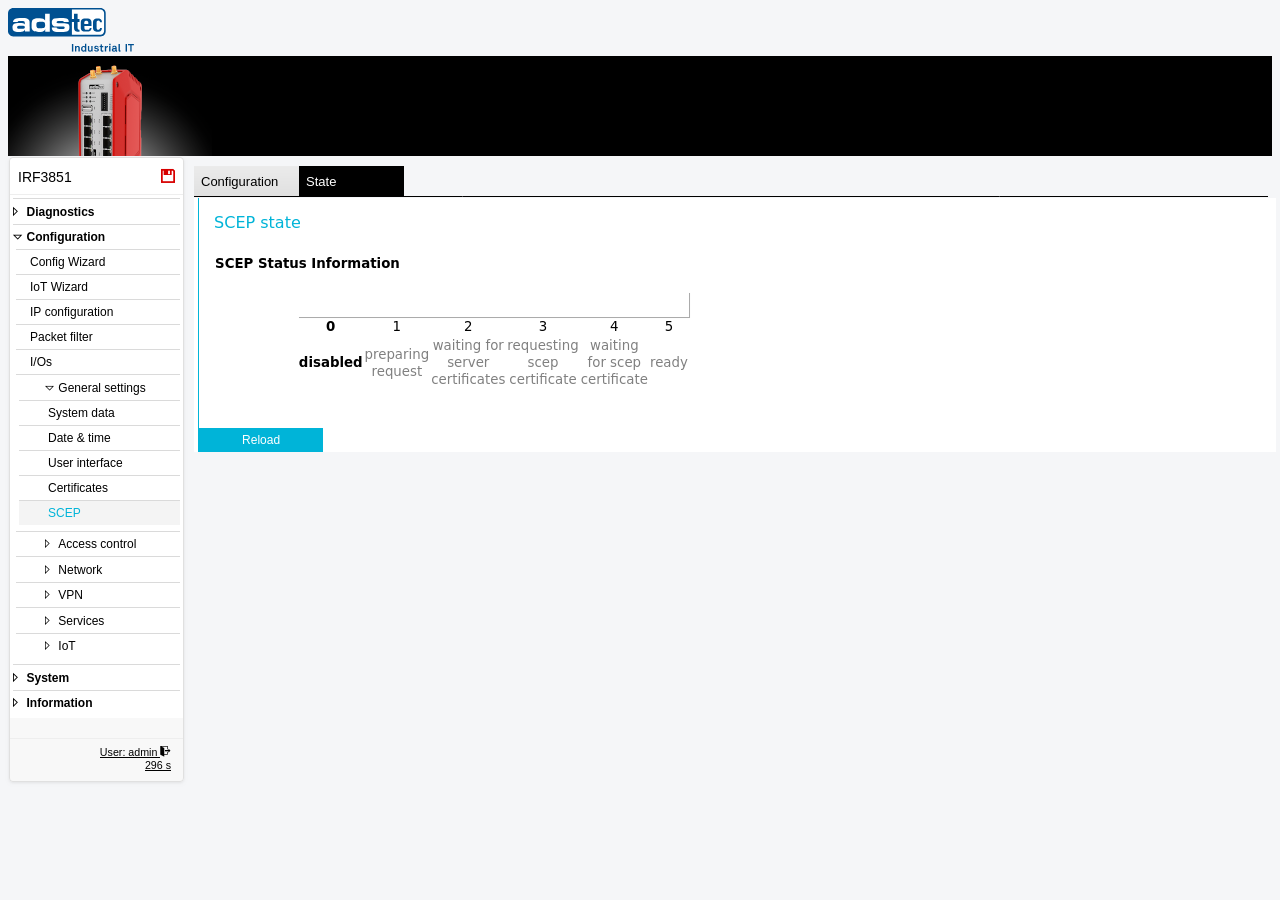
SCEP Status Information
The status view presents a numbered progress bar with six stages (0 through 5) that indicate the current phase of the SCEP enrollment process:
- 0 -- disabled
- The SCEP client is not active. No enrollment or renewal is in progress. Enable the SCEP client on the SCEP configuration tab to start the enrollment process.
- 1 -- preparing request
- The device is preparing the certificate signing request (CSR) with the configured client certificate attributes and challenge password.
- 2 -- waiting for server certificates
- The device has contacted the SCEP server and is waiting to receive the CA and RA certificates required to encrypt and verify the enrollment request.
- 3 -- requesting SCEP certificate
- The device is sending the certificate signing request to the SCEP server and waiting for the server to process the enrollment.
- 4 -- waiting for SCEP certificate
- The enrollment request has been submitted. The device is waiting for the SCEP server to issue the signed certificate. If the CA requires manual approval, the process remains in this stage until the administrator approves the request on the CA side.
- 5 -- ready
- The device has successfully received and installed the certificate from the SCEP server. The certificate is now available on the Certificates page and can be used by services such as OpenVPN and IPsec.
Click Reload to refresh the displayed status information.
Note
If the enrollment process does not progress beyond a specific stage, verify that the SCEP server is reachable from the device, the server URL is correct on the SCEP configuration tab, and any required challenge password has been entered correctly. Check the Eventlog for detailed error messages related to the SCEP enrollment.