User accounts
Navigation: Configuration > Access control > User accounts
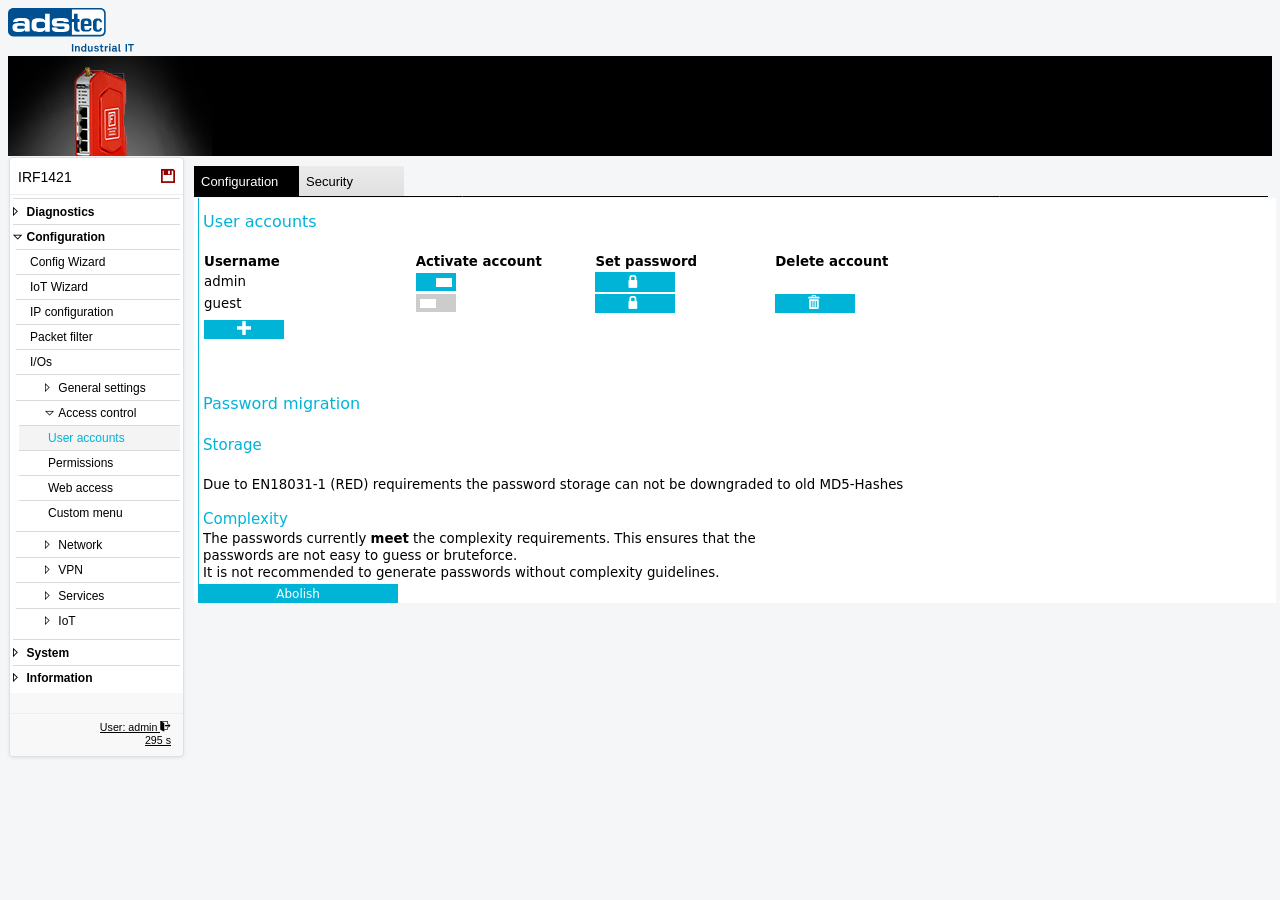
The User accounts page manages the local user accounts that can log into the IRF1000 web interface. It provides controls to create new accounts, activate or deactivate existing accounts, set passwords, and delete accounts that are no longer needed. The device ships with two default accounts: admin (active) and guest (inactive). Each account's access to specific configuration pages and features is controlled separately on the Permissions page, while the interfaces and protocols through which users can reach the web interface are configured on the Web access page. The page also displays the current password migration and complexity status, ensuring compliance with EN 18031-1 (RED) security requirements. Changes take effect immediately after clicking Apply, but must be saved persistently via the Save page to survive a reboot.
Settings
User accounts
The user accounts table lists all configured accounts on the device. Each row displays the username and provides controls for account management.
- Username
- The login name of the user account. To add a new account, click the + button below the table and enter the desired username.
- Activate account
- Enables or disables the user account. When activated (toggle switch on), the user can log into the web interface with the corresponding credentials. When deactivated, the account exists on the device but login attempts are rejected. The admin account is active by default and cannot be deleted.
- Set password
- Opens a dialog to set or change the password for the selected account. Only high-quality passwords are accepted. Passwords are evaluated for overall strength and resistance to guessing, not by fixed character rules alone. Use a long, unique passphrase or a randomly generated password. Avoid names, dates, common words, keyboard patterns, and simple substitutions such as "Password1!". Password strength is checked with zxcvbn, the same estimation approach also used by KeePassXC.
- Delete account
- Removes the selected user account from the device. The admin account cannot be deleted. Only user-created accounts and the guest account can be removed. Deleting an account is irreversible once saved.
Password migration
The Password migration section displays the current state of password storage and complexity enforcement on the device.
Storage
Shows how user passwords are hashed on the device. By default, passwords are stored as secure Argon2 hashes.
On device variants without a cellular modem, a Migrate button is shown that switches password storage to the legacy MD5 (htdigest) scheme. This is intended solely for backward compatibility — for example, to run older firmware after a downgrade, or when a legacy application requires the Classic HTTP API — and is not recommended, because MD5 hashing is considered broken and insecure.
Devices with a cellular modem cannot be switched to MD5 storage: to comply with EN 18031-1 (RED) they always store passwords as Argon2 hashes, and a note stating that the storage cannot be downgraded to old MD5 hashes is shown in place of the button.
Complexity
Indicates whether all configured passwords currently meet the complexity requirements. When passwords meet the requirements, the device ensures that they are not easy to guess or brute-force. It is not recommended to generate passwords without complexity guidelines. The Abolish button disables the password complexity enforcement. This action is strongly discouraged in production environments.
ATTENTION
Disabling password complexity enforcement via the Abolish button weakens the security posture of the device. Without complexity requirements, users may set weak passwords that are vulnerable to brute-force attacks. Only disable complexity enforcement temporarily and for specific diagnostic purposes, then re-enable it immediately afterward.
Security
Change the default passwords for all accounts immediately after initial commissioning. Deactivate or delete the guest account if it is not required for your deployment. Create individual named accounts for each operator or administrator rather than sharing a single account, to maintain accountability and enable meaningful audit trails on the Audit page. Assign each account only the minimum permissions required for its role on the Permissions page, following the principle of least privilege in accordance with IEC 62443. Restrict web interface access to trusted networks and interfaces on the Web access page. Regularly review the list of active accounts and remove any that are no longer needed.