Custom menu
Navigation: Configuration > Access control > Custom menu
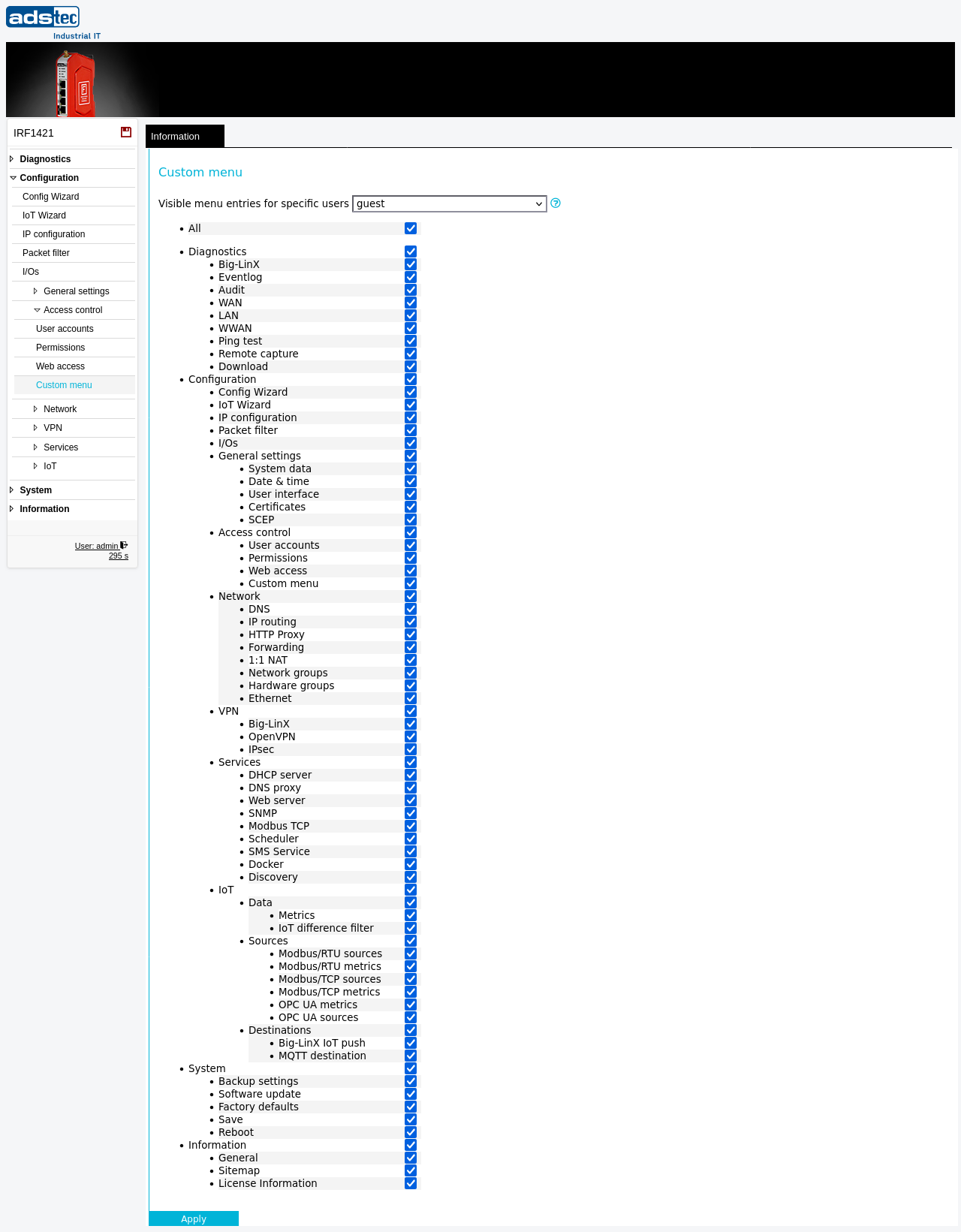
The Custom menu page allows administrators to tailor the web interface navigation for individual user accounts on the IRF1000. By selecting a user from the dropdown at the top of the page, the administrator can check or uncheck individual menu entries to control which pages appear in that user's sidebar navigation. This provides a way to simplify the web interface for operators who only need access to a subset of functions, such as diagnostics or specific configuration pages. The customization is purely visual — it hides menu entries from the sidebar but does not restrict actual access permissions. Users can still reach hidden pages via direct URLs (deep links), and the device API remains fully accessible regardless of menu visibility. To enforce actual access restrictions, use the Permissions page. Changes take effect after clicking Apply settings, but must be saved persistently via the Save page to survive a reboot.
Prerequisites
- At least one additional user account beyond the default admin account should be configured on the User accounts page. Customizing the menu is most useful when different users have different operational roles.
Settings
User selection
- Visible menu entries for specific users
- Select a user account from the dropdown to view and modify that user's visible menu entries. The page displays the complete navigation tree with a checkbox next to each menu item.
- All
- Click the All link to quickly select all menu entries, making the full navigation visible for the selected user.
Navigation tree
The navigation tree lists all available web interface pages, organized by category (Diagnostics, Configuration, System, Information). Each entry has a checkbox that controls whether the page appears in the selected user's sidebar navigation.
- Checked: The page is visible in the user's sidebar menu.
- Unchecked: The page is hidden from the user's sidebar menu.
Top-level categories (e.g., Diagnostics, Configuration) act as section headers. If all entries within a category are unchecked, the entire category heading is hidden from the user's navigation.
ATTENTION
The custom menu setting only controls the visibility of menu entries in the sidebar navigation. It does not affect the permissions of the page itself. Users can still access hidden pages via direct links (deep links) or the API. To restrict actual access to specific pages, configure access controls on the Permissions page.
Security
In accordance with IEC 62443 defense-in-depth principles, use the Custom menu page in combination with the Permissions page. First restrict actual page access via permissions, then hide unnecessary menu entries to present each user with a clean, role-appropriate interface. This reduces the risk of accidental misconfiguration by operators who do not need access to advanced settings. Regularly review menu configurations when user roles change or new accounts are created.